Kaip nustatyti įmonės pavadinimą, logotipą, kalbą ir valiutą?
Atnaujinta 2026 m. spalio 8 d.
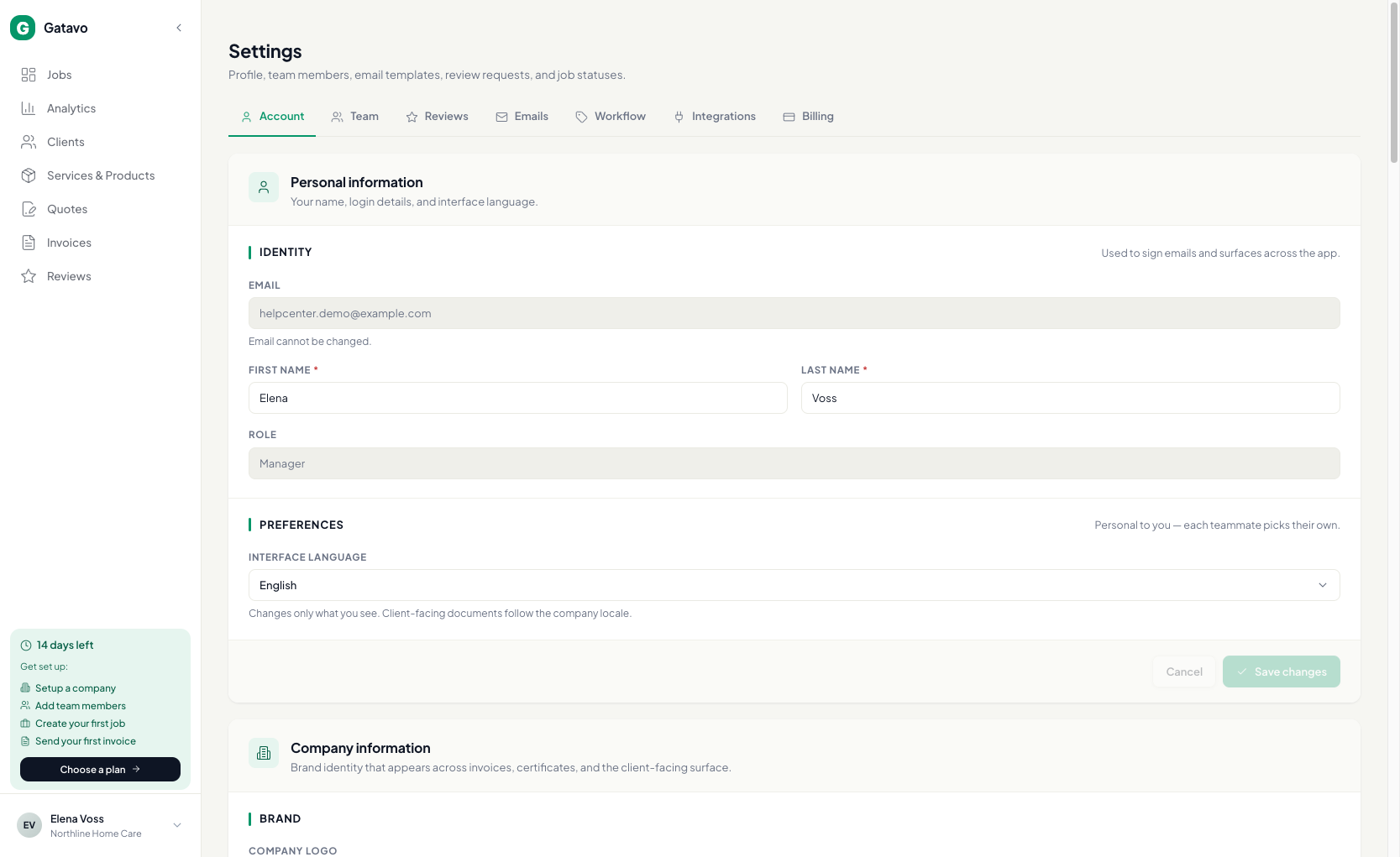
Atidarykite Nustatymai → Paskyra. Pakeiskite Asmeninė informacija ir Įmonės informacija. Spustelėkite Išsaugoti pakeitimus.
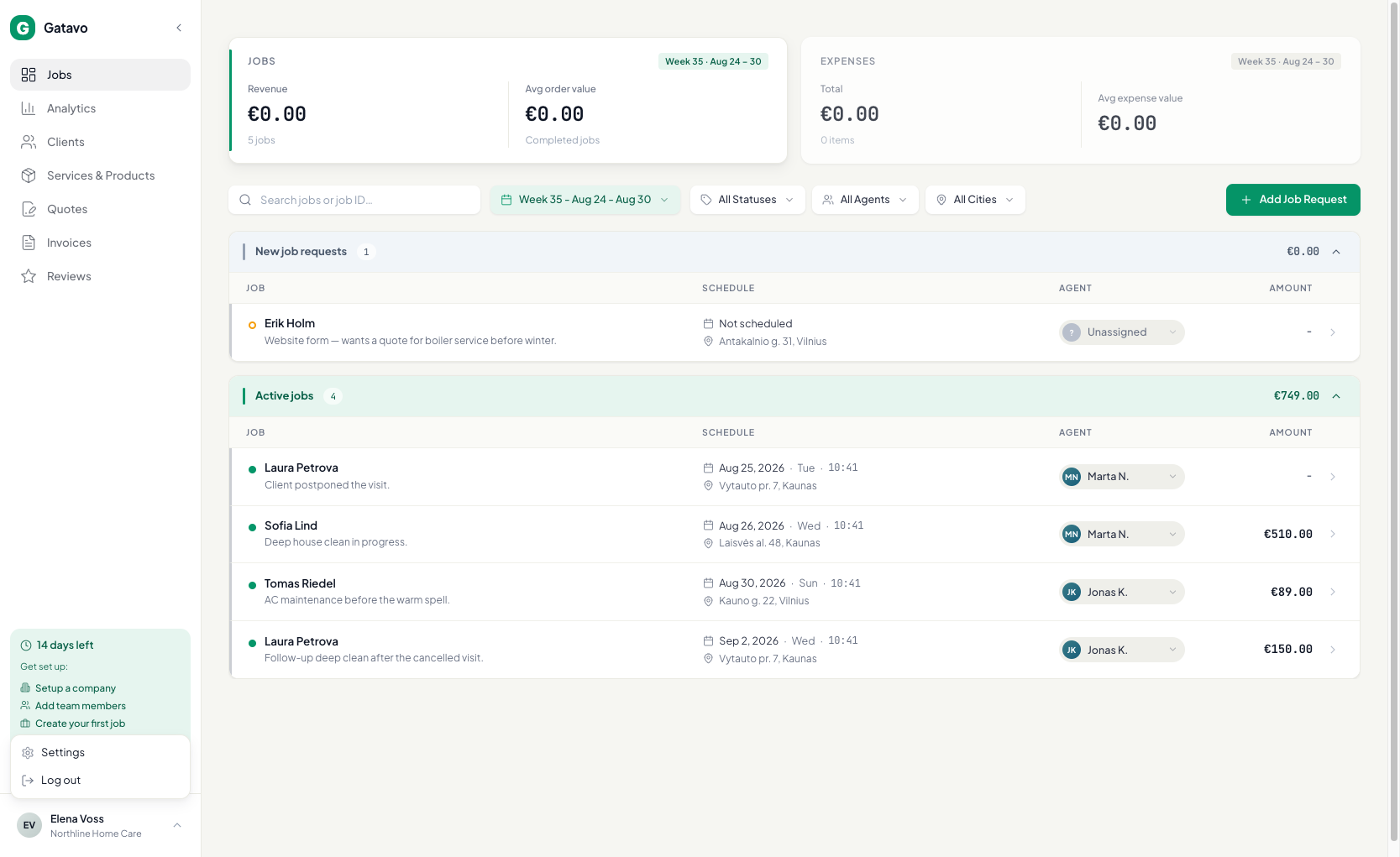
- Apačioje kairėje spustelėkite savo inicialus. Spustelėkite Nustatymai.
- Likite skirtuke Paskyra.
- Skiltyje Asmeninė informacija pakeiskite Vardas ir Pavardė. Pasirinkite Sąsajos kalba. El. pašto keisti negalima.
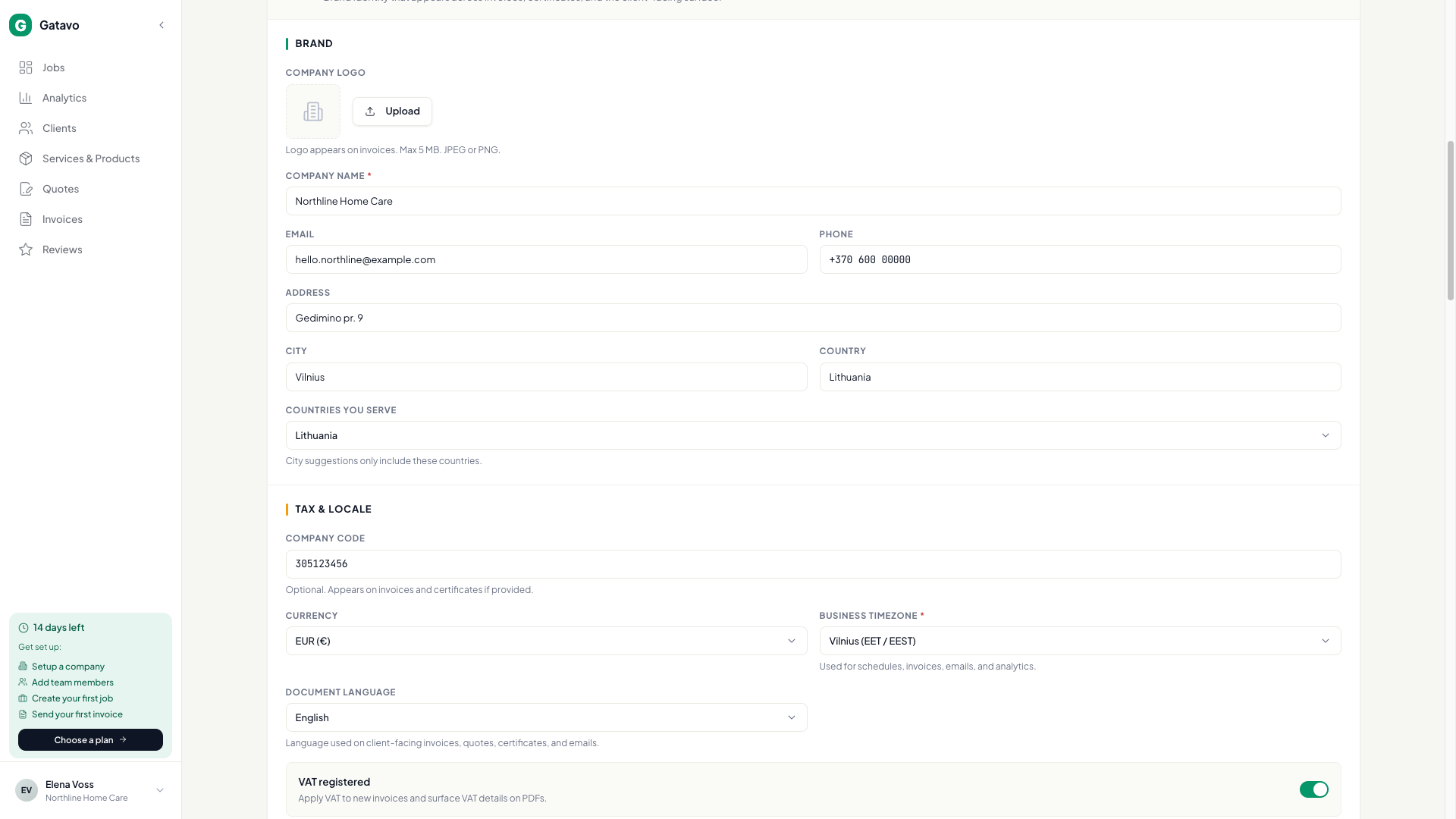
- Skiltyje Įmonės informacija spustelėkite Įkelti (arba Keisti) logotipui. Tinka JPEG arba PNG. Daugiausia 5 MB.
- Įrašykite Įmonės pavadinimas, El. paštas, Telefonas, Adresas, Miestas, Šalis. Šis Miestas yra jūsų juridinis adresas. Įrašykite jį. Tai nėra darbų miestų sąrašas.
- Skiltyje Prekės ženklas nustatykite Šalys, kuriose dirbate. Miestų pasiūlymai darbuose, pasiūlymuose, klientuose, svetainės formoje ir kvietimuose rodo tik šias šalis. Vis tiek galite įrašyti miestą, kurio nėra sąraše.
- Pasirinkite Valiuta (EUR, USD, GBP arba PLN).
- Pasirinkite Veiklos laiko juosta. Jei prašoma, patvirtinkite Keisti laiko juostą. Seni PDF nesikeičia.
- Jei taikote PVM, įjunkite PVM mokėtojas. Įrašykite PVM kodas ir PVM tarifas (%). Skaitykite Kaip veikia PVM ir sąskaitų numeriai?.
- Pasirinkite Dokumentų kalba. Tai kalba, kurią klientai mato PDF ir el. laiškuose.
- Spustelėkite Išsaugoti pakeitimus.
Dvi kalbos
Sąsajos kalba — ką matote jūs. Dokumentų kalba — ką mato klientai.