Как отправить счёт или скачать PDF?
Обновлено 8 октября 2026 г.
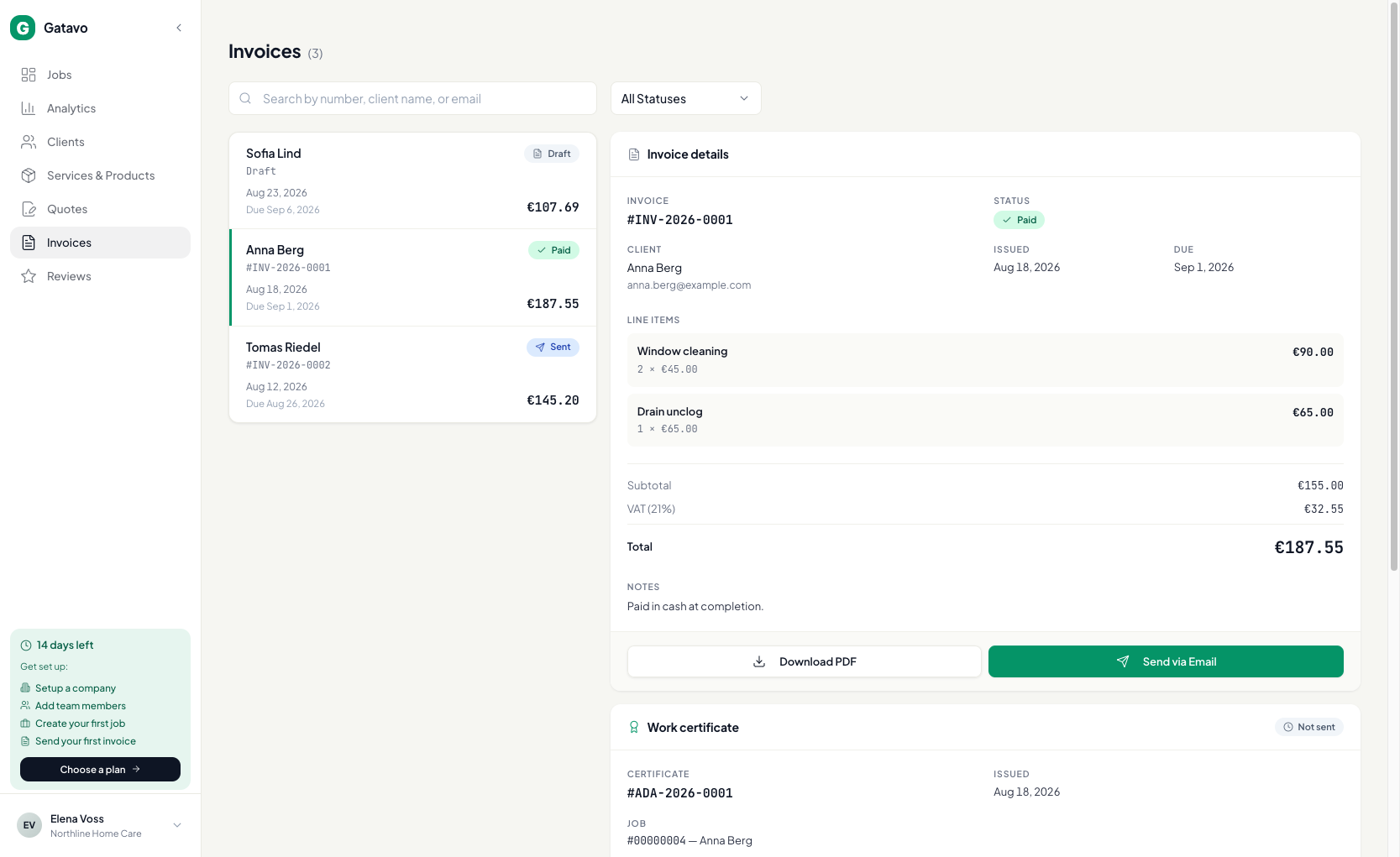
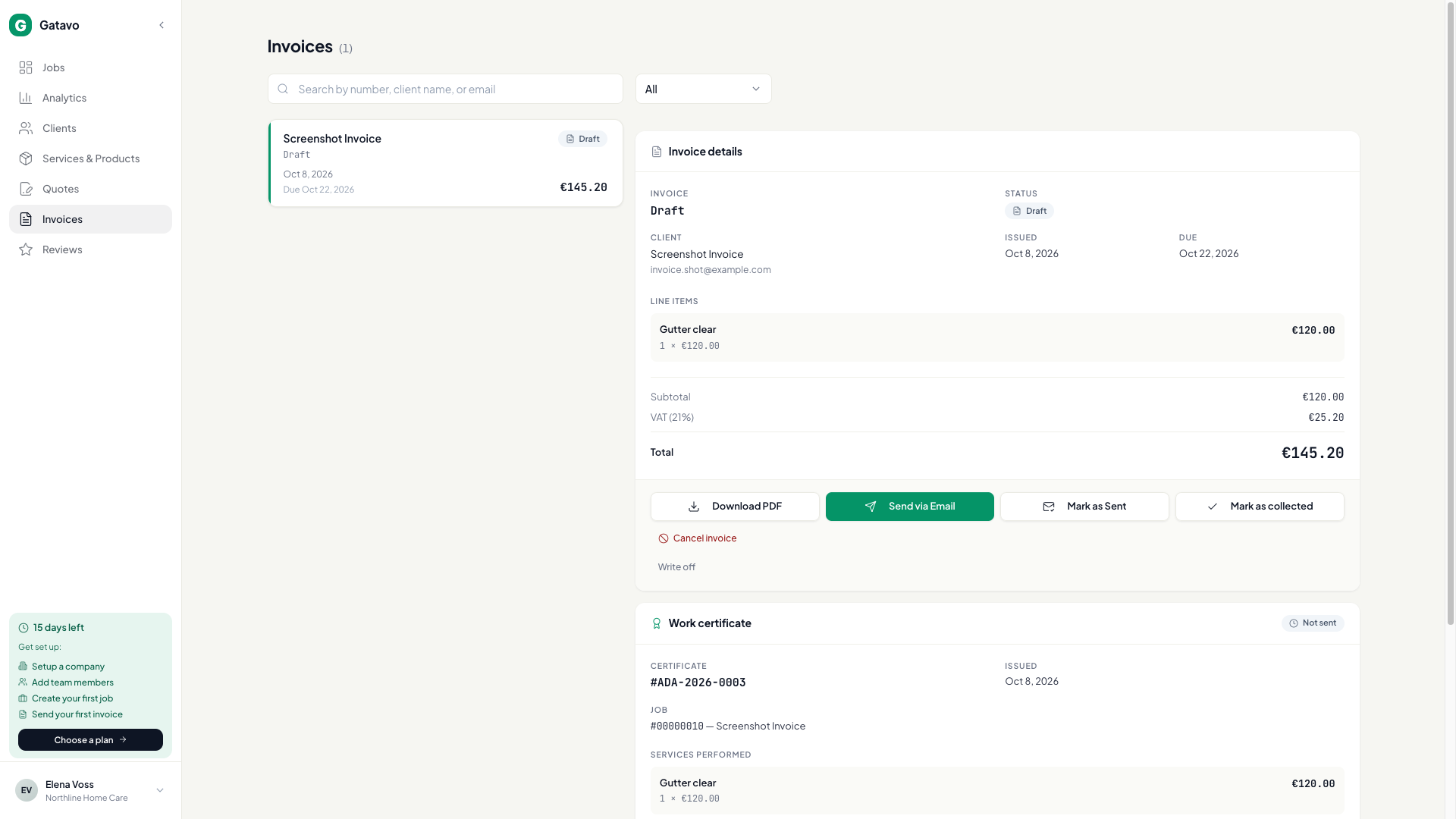
Откройте Счета, выберите строку и нажмите Скачать PDF, Отправить по эл. почте или Отметить как отправленный.
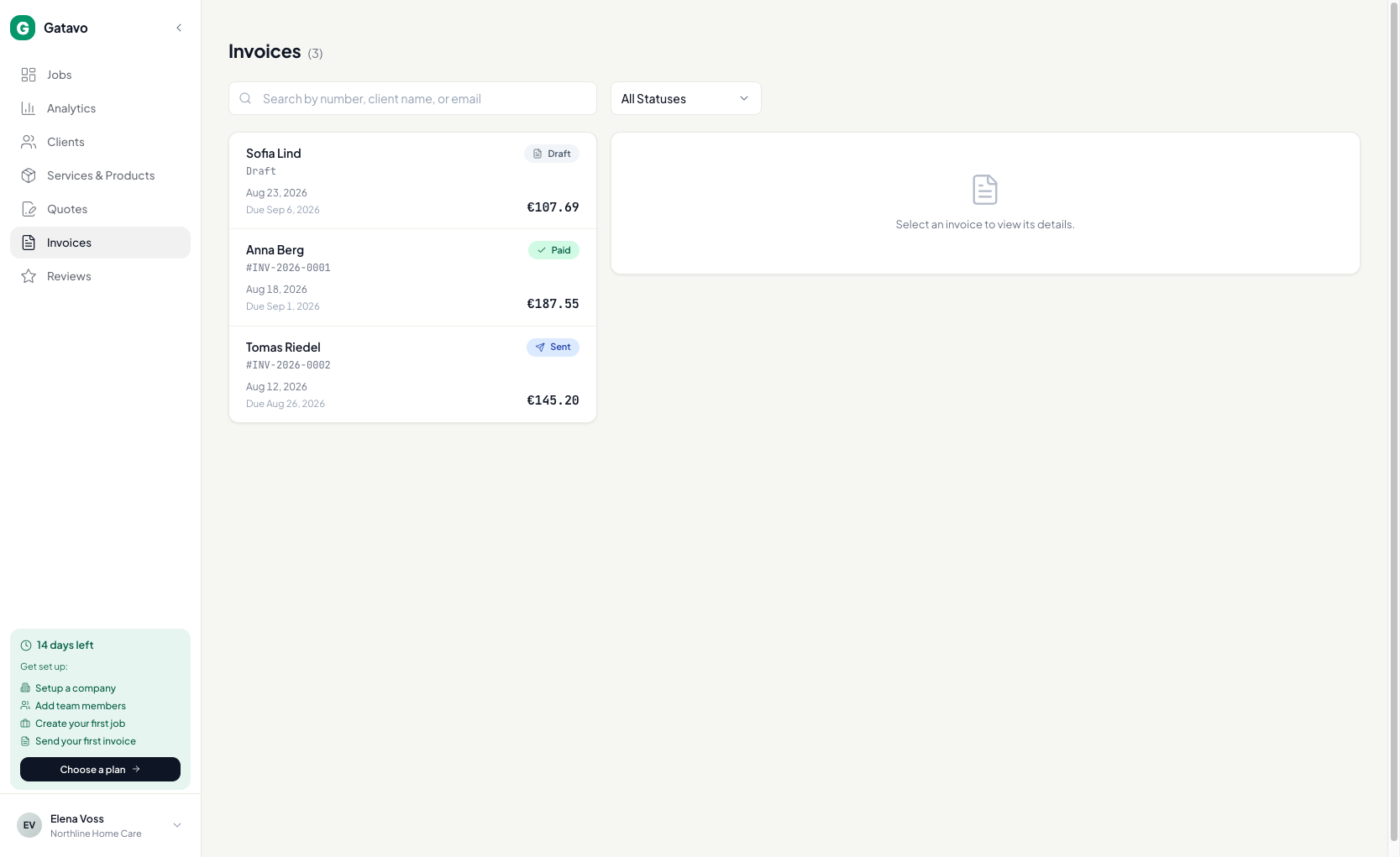
- Нажмите Счета.
- Нажмите строку.
- Нажмите Скачать PDF и проверьте логотип, строки, НДС, банковские данные и QR-код для оплаты через банк.
- Нажмите Отправить по эл. почте, чтобы отправить счёт клиенту. В его профиле должна быть эл. почта. Письмо содержит PDF и ссылку Посмотреть счёт. Если счёт был черновиком, это действие также присвоит ему номер.
- Нажмите Отметить как отправленный, если передали счёт другим способом: распечатали, отправили в WhatsApp или отдали лично. Gatavo покажет Счёт выставлен и Счёт выставлен без отправки письма. Письмо не отправляется. Черновик с записанной оплатой станет Оплачен, а без оплаты — Отправлен.
- Когда деньги поступят по выставленному счёту, нажмите Отметить как оплаченный. Для черновика без записанной оплаты та же кнопка называется Отметить как полученное (см. Как позже отметить счёт оплаченным?).
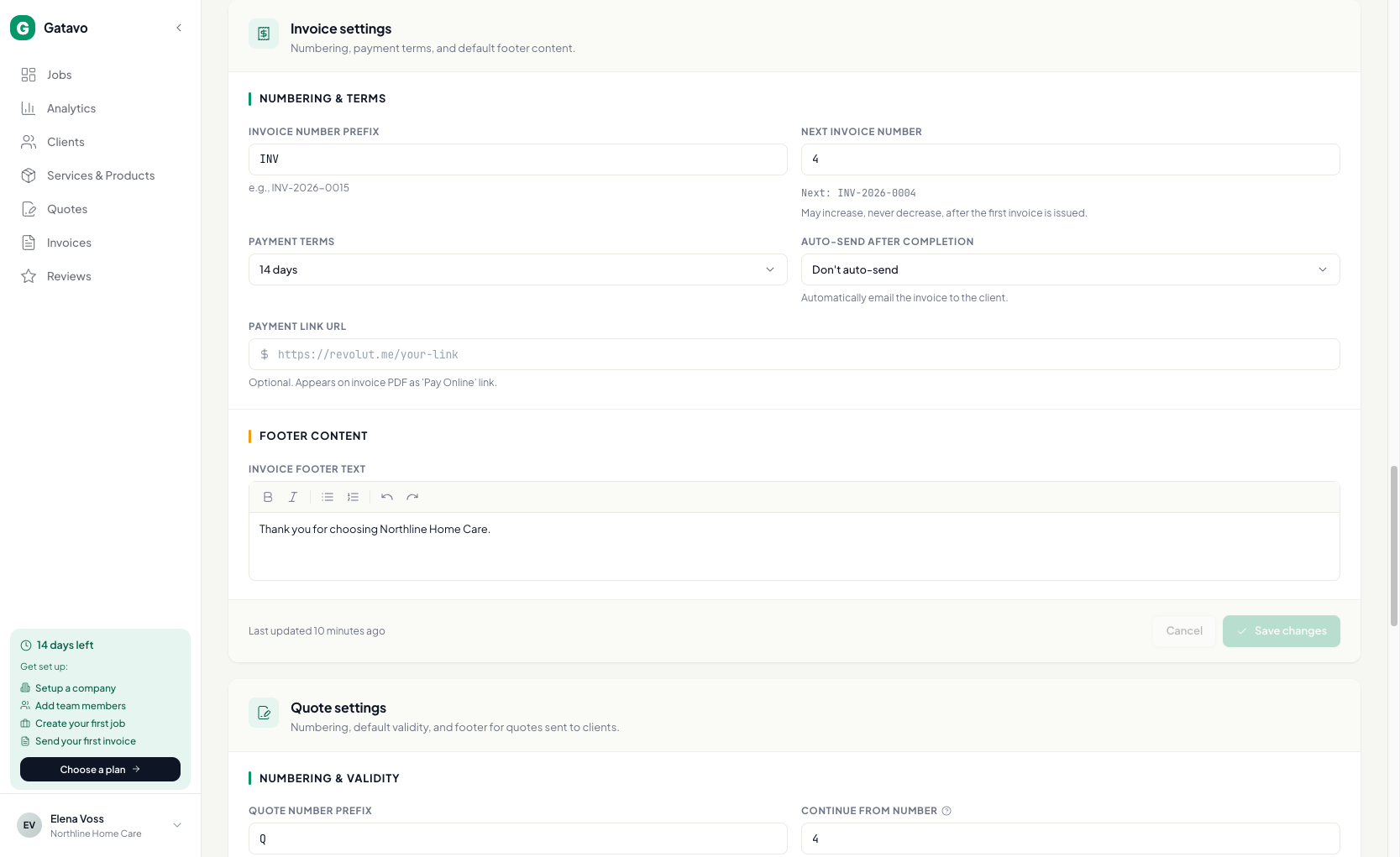
Автоотправка: Настройки → Аккаунт → Настройки счетов → Автоотправка после завершения. Выберите Не отправлять автоматически или 1, 24 либо 48 часов. Общая пауза компании может остановить это письмо, не сбрасывая задержку (см. Как изменить письма клиентам?).
Исполнители с разделом дохода
В своём меню они видят Счета и имеют доступ только к своим документам. Кнопки Отметить как отправленный у них нет.