How do I reopen a cancelled job?
Updated 8 Oct 2026
Open the cancelled job. Click Reopen. Type a Reopen reason. Click Confirm Reopen.
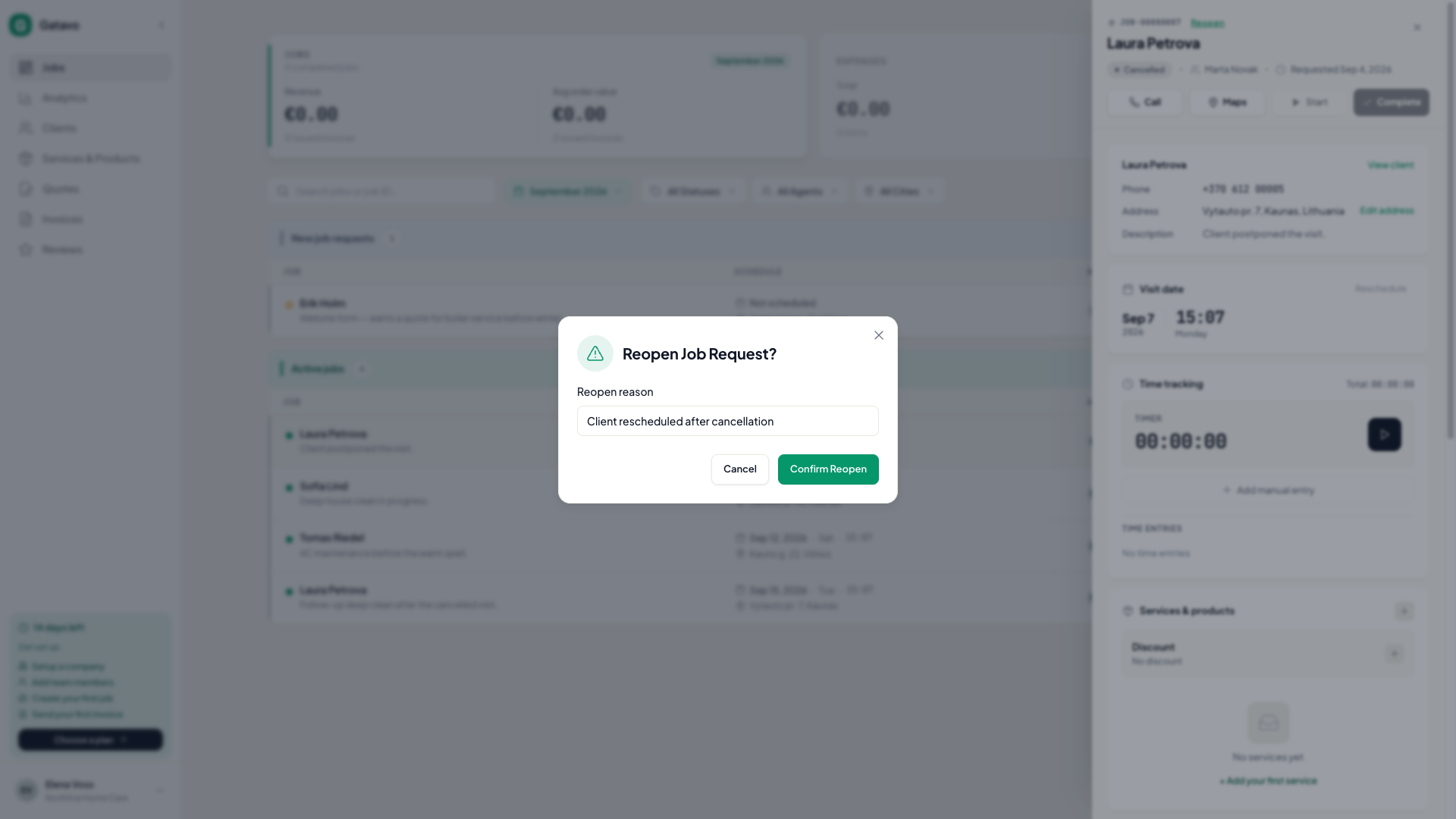
- Open the cancelled job.
- Click Reopen.
- Type a Reopen reason. It is required. It is saved on visit history.
- Click Confirm Reopen.
The job goes back to Scheduled with no visit date. Set Visit Date again (see How do I set or change the visit time?). Then you can Start or Complete.
You cannot reopen a cancelled Recurring job. Click Stop Recurring first if you need to end the series. Agents and team leads cannot reopen.