How do I see how the business is doing?
Updated 8 Oct 2026
Click Analytics. Pick a week, month, or date range. Money follows invoices, not “jobs completed.”
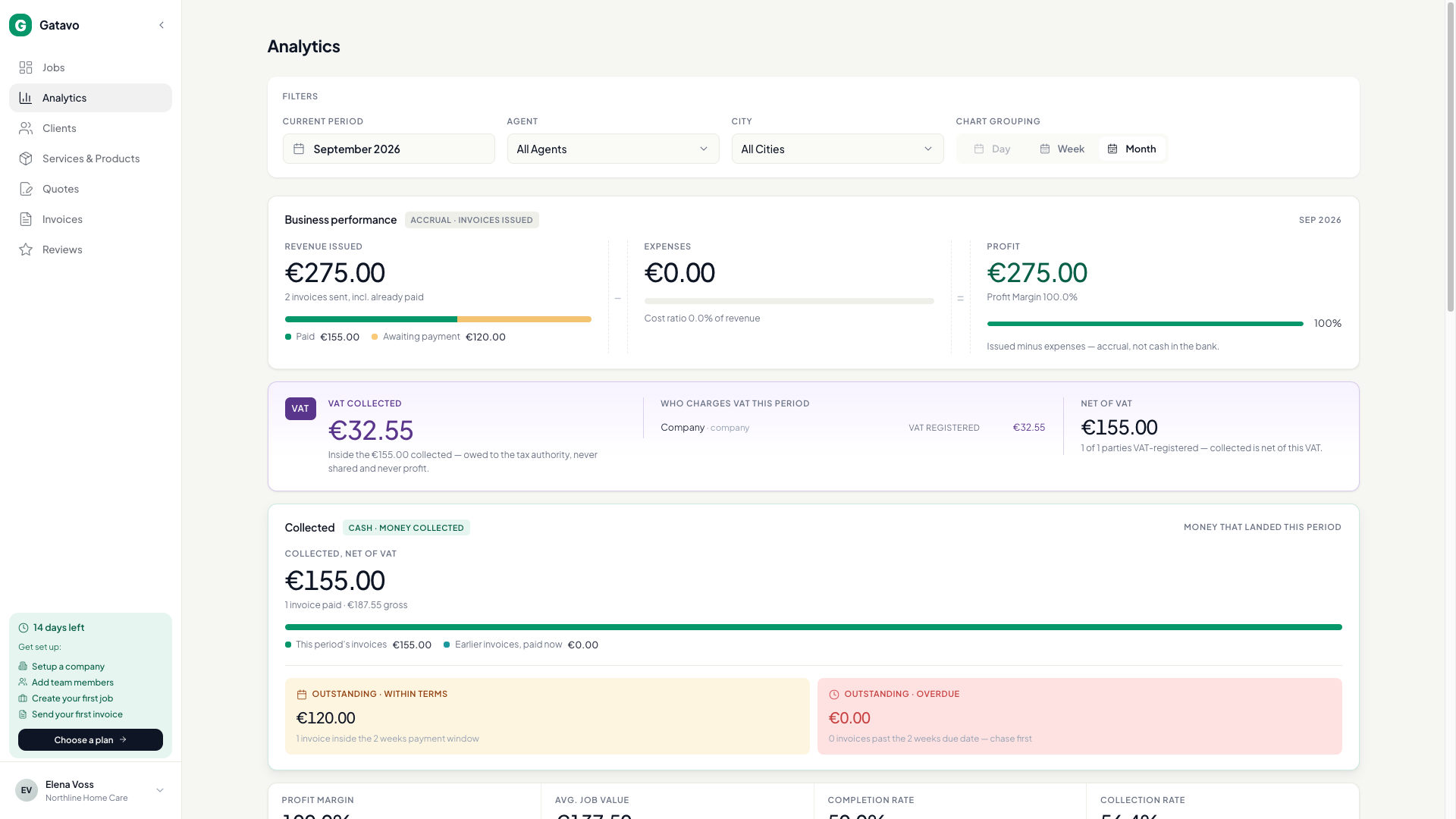
- Click Analytics.
- Pick the period at the top. The company Week / Month preference (set by a manager) is what everyone sees on Jobs and Analytics.
- Read Business performance: invoiced, expenses, and profit for invoices issued in that period.
- On Traditional, read Collected: money that landed this period, split into this period’s invoices and earlier invoices paid now, plus what is still unpaid.
- Managers also see Quote conversion (quotes you sent), Job funnel, and Invoice ledger.
- Filter by agent or city if you need to. Team leads do not get city or compare. They only see their crew.
Invoiced is invoices issued in the period (Send via Email, Mark as Sent, or auto-send). Collected is cash in the period, even when the number comes later. A job you marked paid and have not issued yet raises Collected and does not raise Invoiced.
Income split only: when the company is VAT-registered and the agent issued the client invoice, Earnings & settlement can show VAT on company fee. See How do I settle an agent’s earnings?.
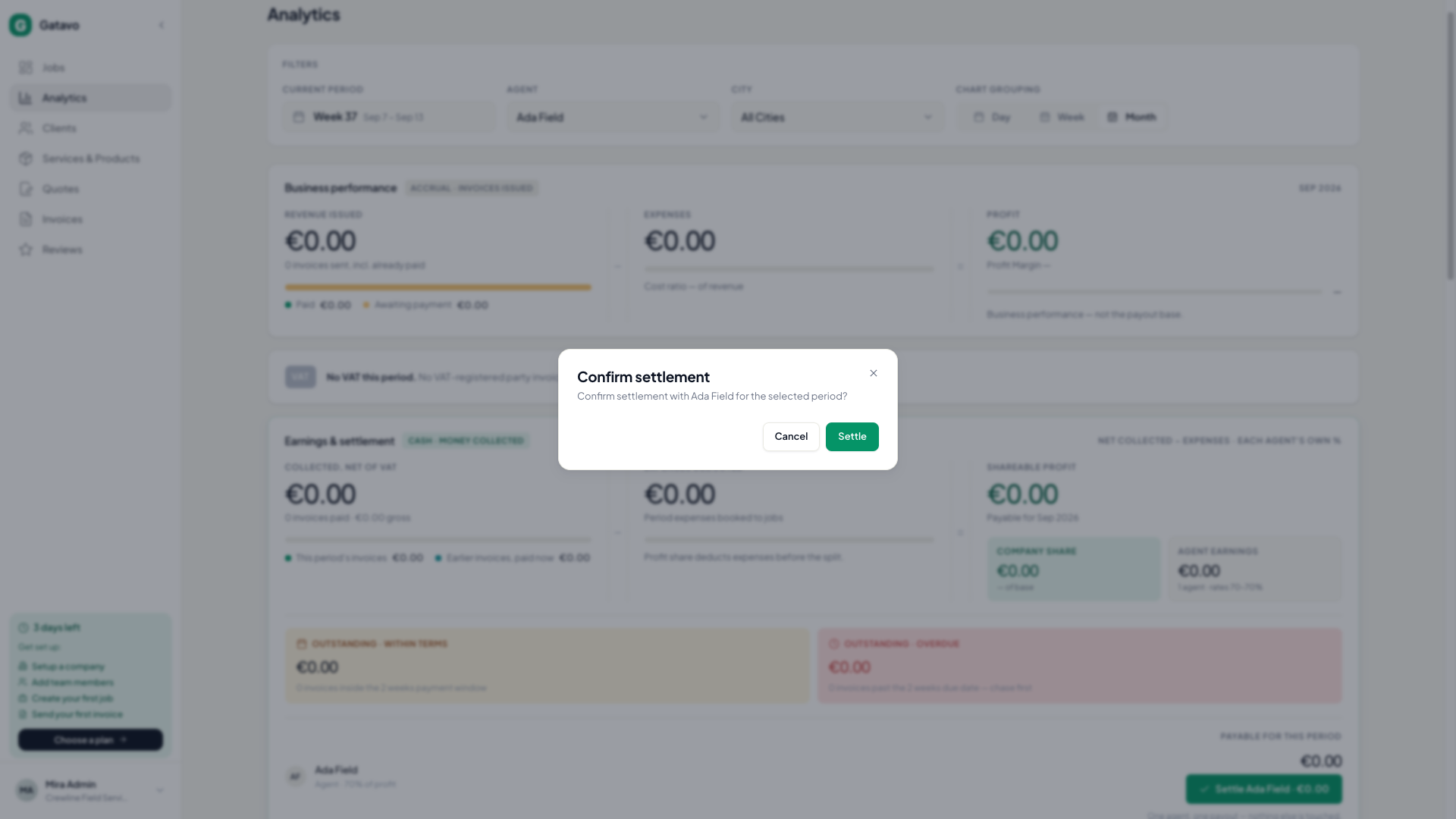
You also see Earnings & settlement. To pay someone out, pick that agent in the filter, then use Settle {name} · {amount}. See How do I settle an agent’s earnings?. Turn Compare off first.
Same Analytics page, crew only. No Settle.
Use My Performance, not Analytics. Traditional shows jobs, issued revenue, and completion. Income split also shows their own earnings and a read-only History. They cannot settle.