How do I add a client by hand?
Updated 8 Oct 2026
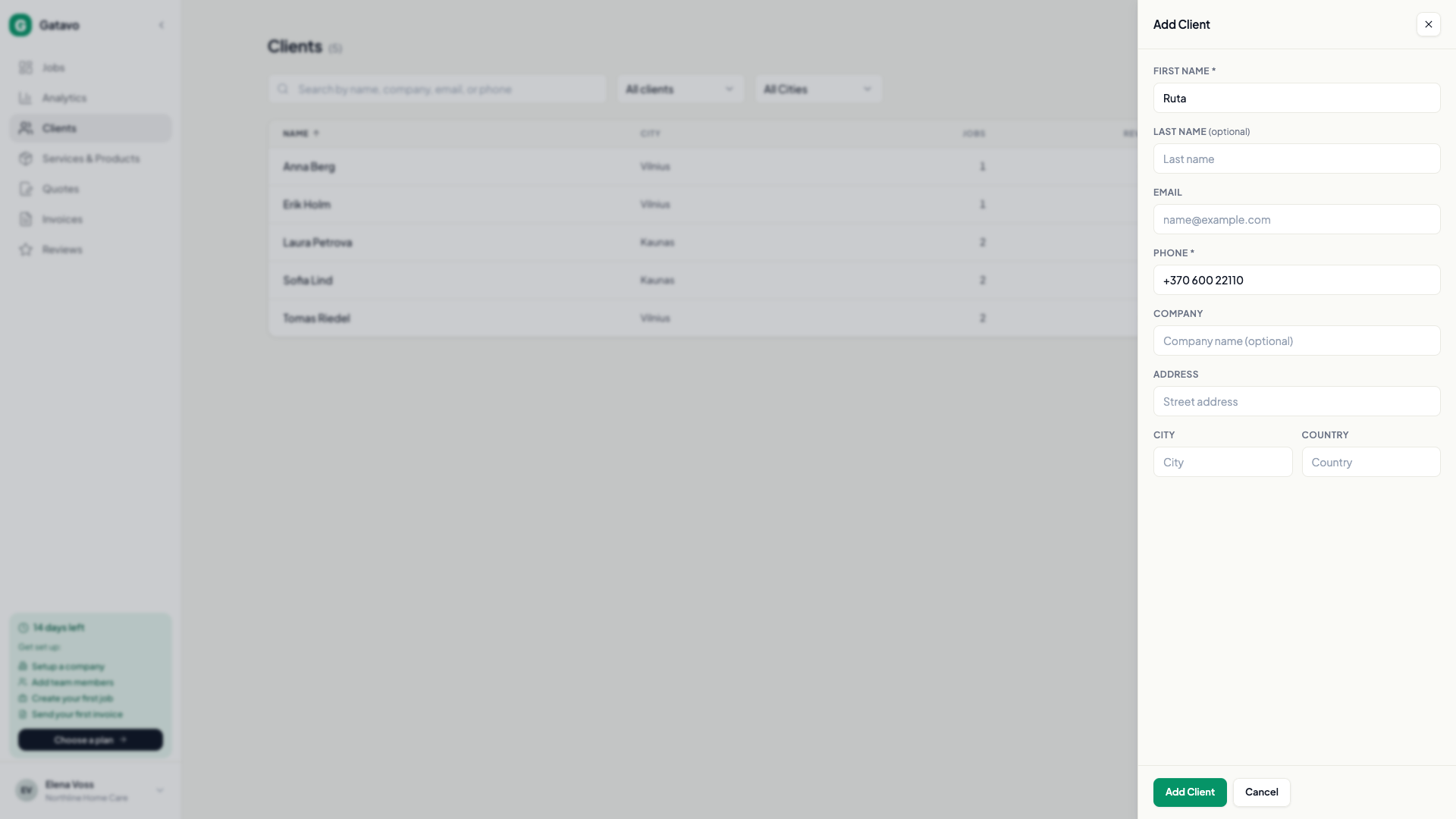
On Clients, click Add Client. You need a First name and a Phone.
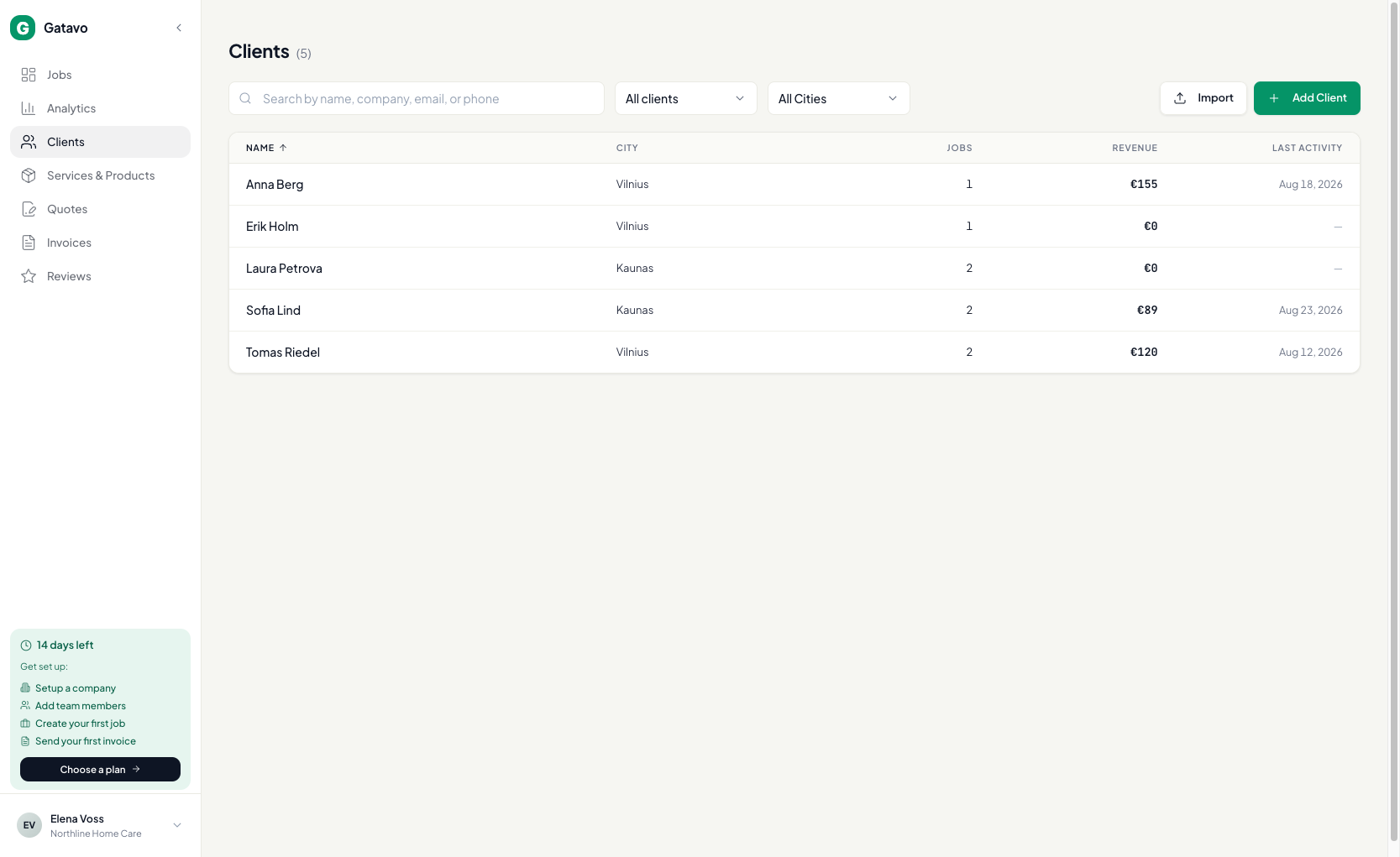
- Click Clients.
- Click Add Client.
- Fill First name and Phone. Last name and Email are optional.
- If the phone or email matches someone already in Gatavo, you see A client with this contact already exists. Open that person. The warning does not stop you saving, but a second card for the same contact is how duplicates start.
- Save.
The client starts as a Prospect. They become Active when you click Start on their first job.
From the profile you can click New Job or Create Quote.
To bring in many clients at once, see How do I import clients from a CSV?.