How do I import clients from a CSV?
Updated 8 Oct 2026
On Clients, click Import. Upload a CSV. Map First name and Email or Phone. Preview. Import.
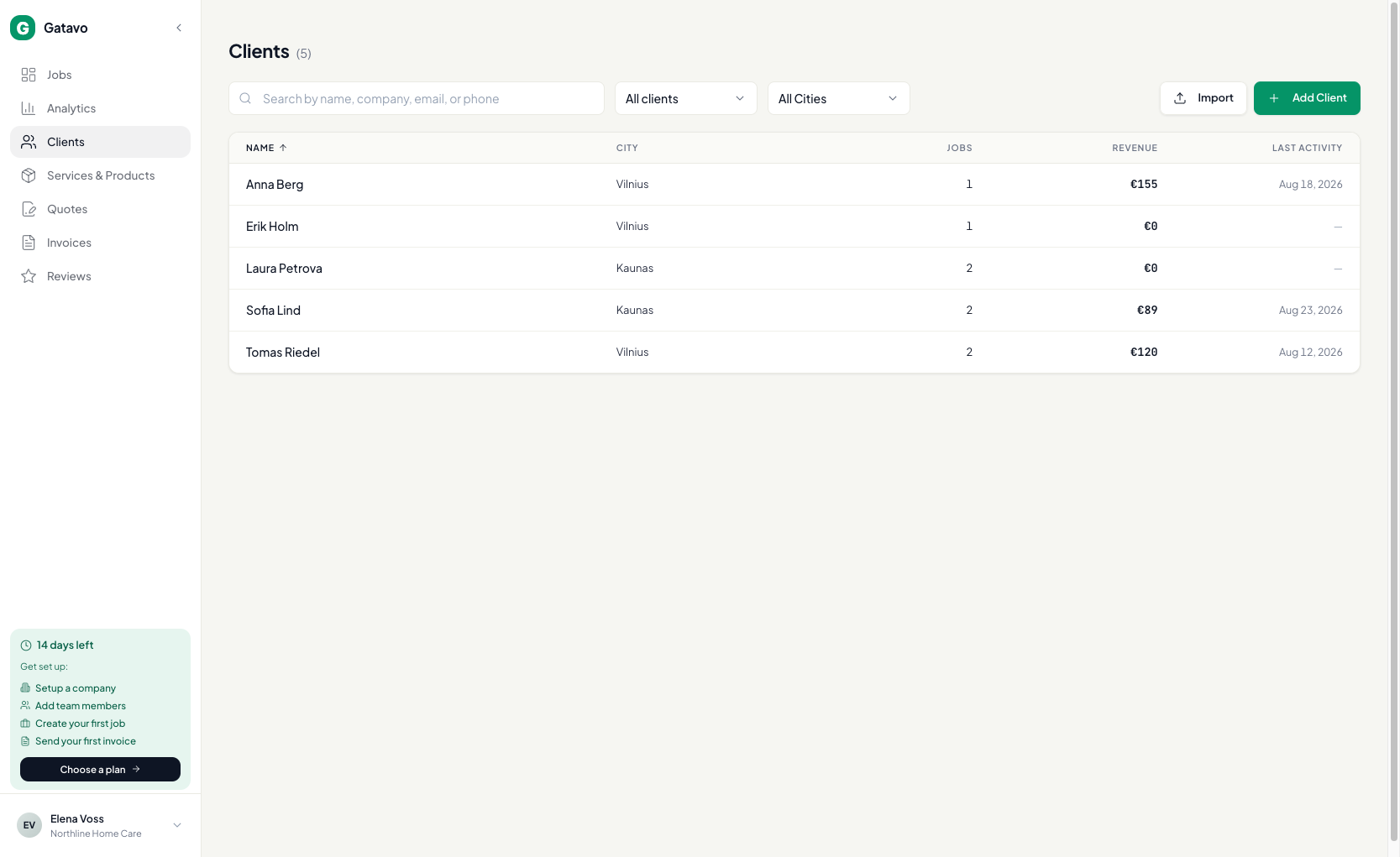
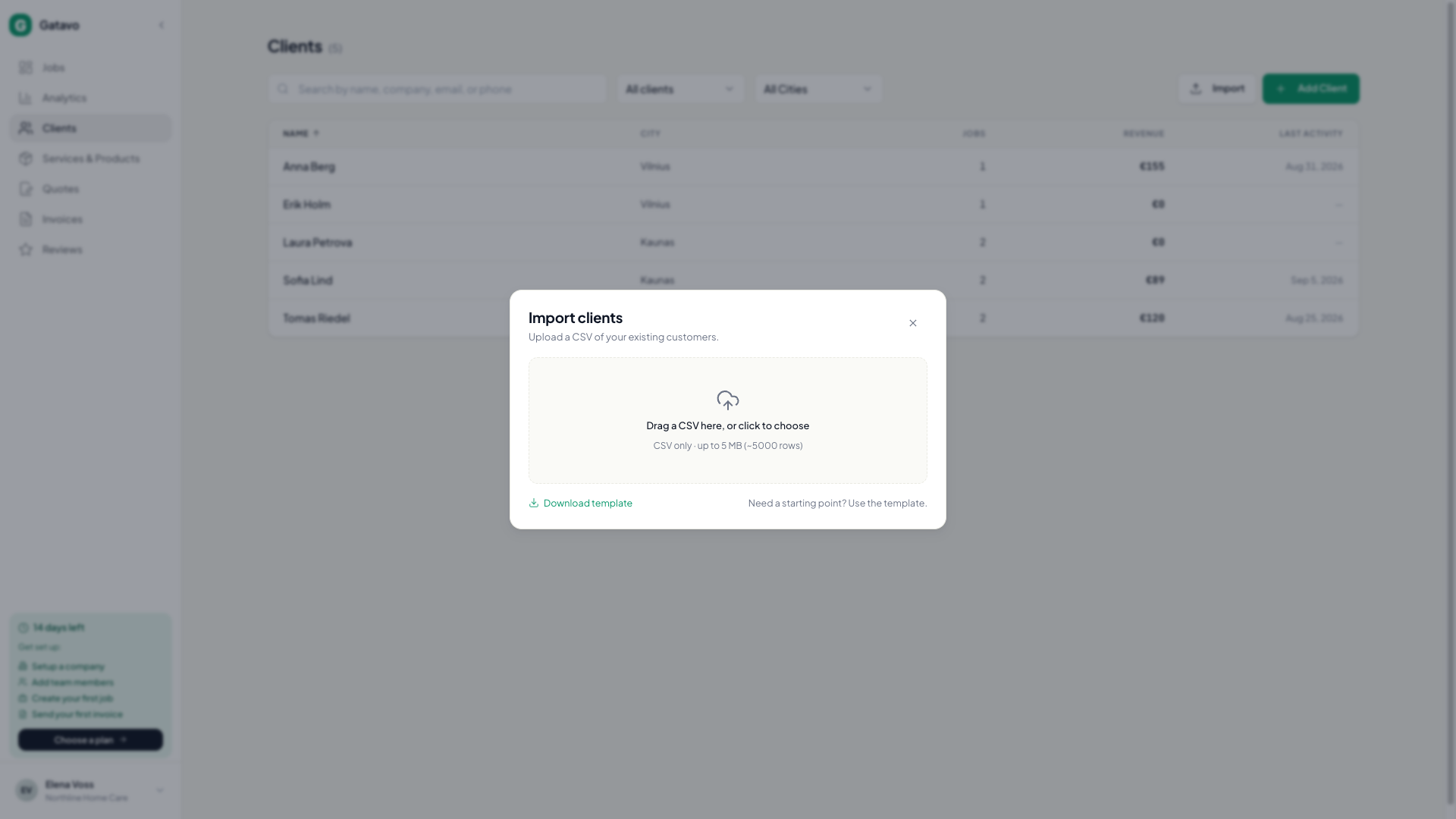
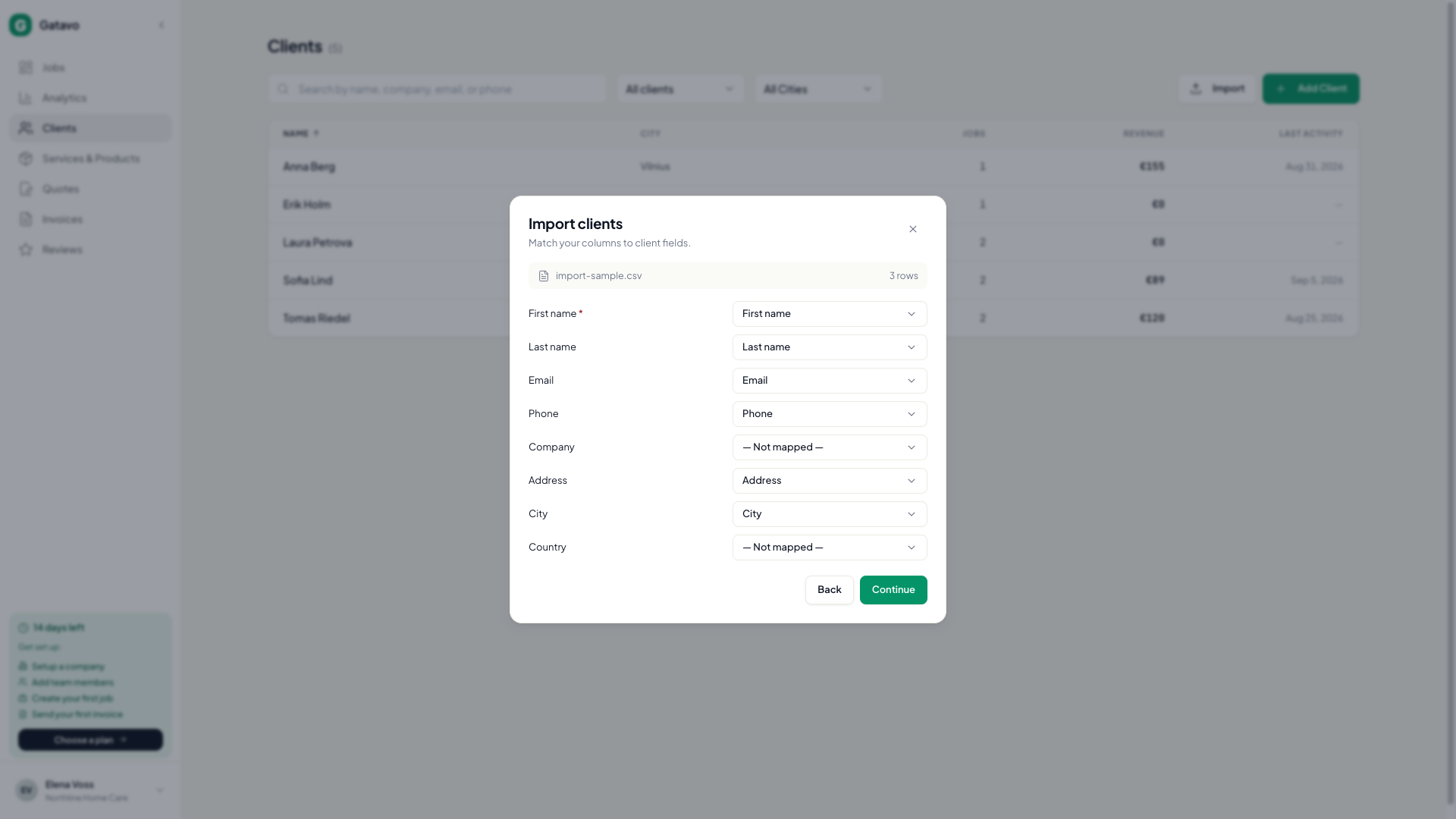
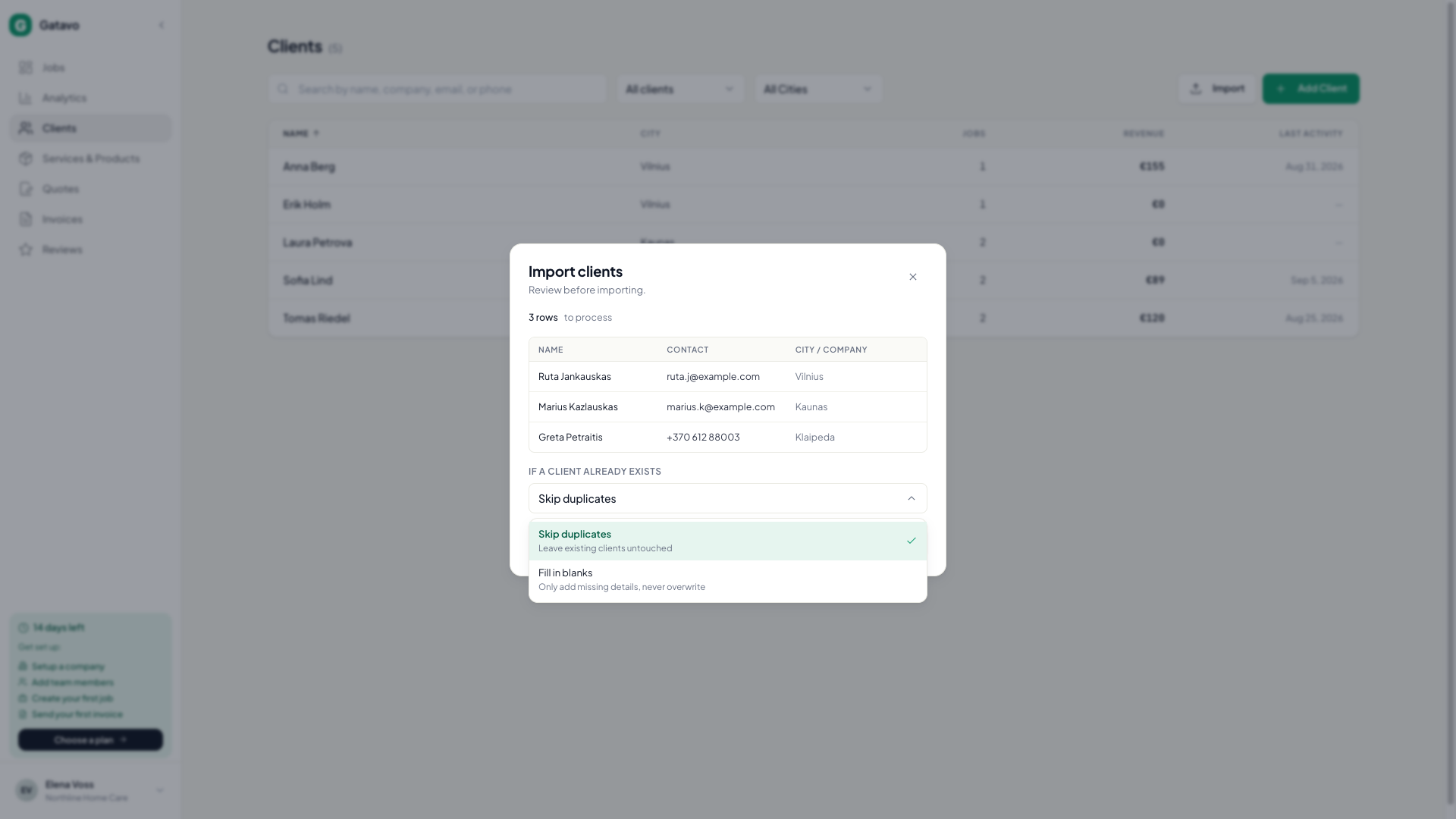
- Click Clients. Click Import.
- Optional: click Download template and fill that file.
- Drag a CSV in, or click to choose. CSV only. Max 5 MB (about 5000 rows).
- On the map step, match your columns. First name must be mapped. Email or Phone must be mapped (one is enough).
- Click Continue. Check the preview.
- If a client already exists (same email, then same phone): pick Skip duplicates (leave them untouched) or Fill in blanks (add missing details only, never overwrite).
- Click Import {n} rows.
- Valid rows import. Problem rows are listed. Download error report is only those rows. Download report is every row: imported, skipped, and failed.
Imported clients start as Prospect. A City cell can include a district, for example Bajorai, Vilniaus r. Gatavo tries to match that place inside Countries you serve. If it cannot, it keeps what you typed.