How do I repeat an expense every week or month?
Updated 8 Oct 2026
On Expenses, add a cost with no job attached. Tick Repeat every period. Each new company week or month gets one normal row. Past weeks stay as you wrote them.
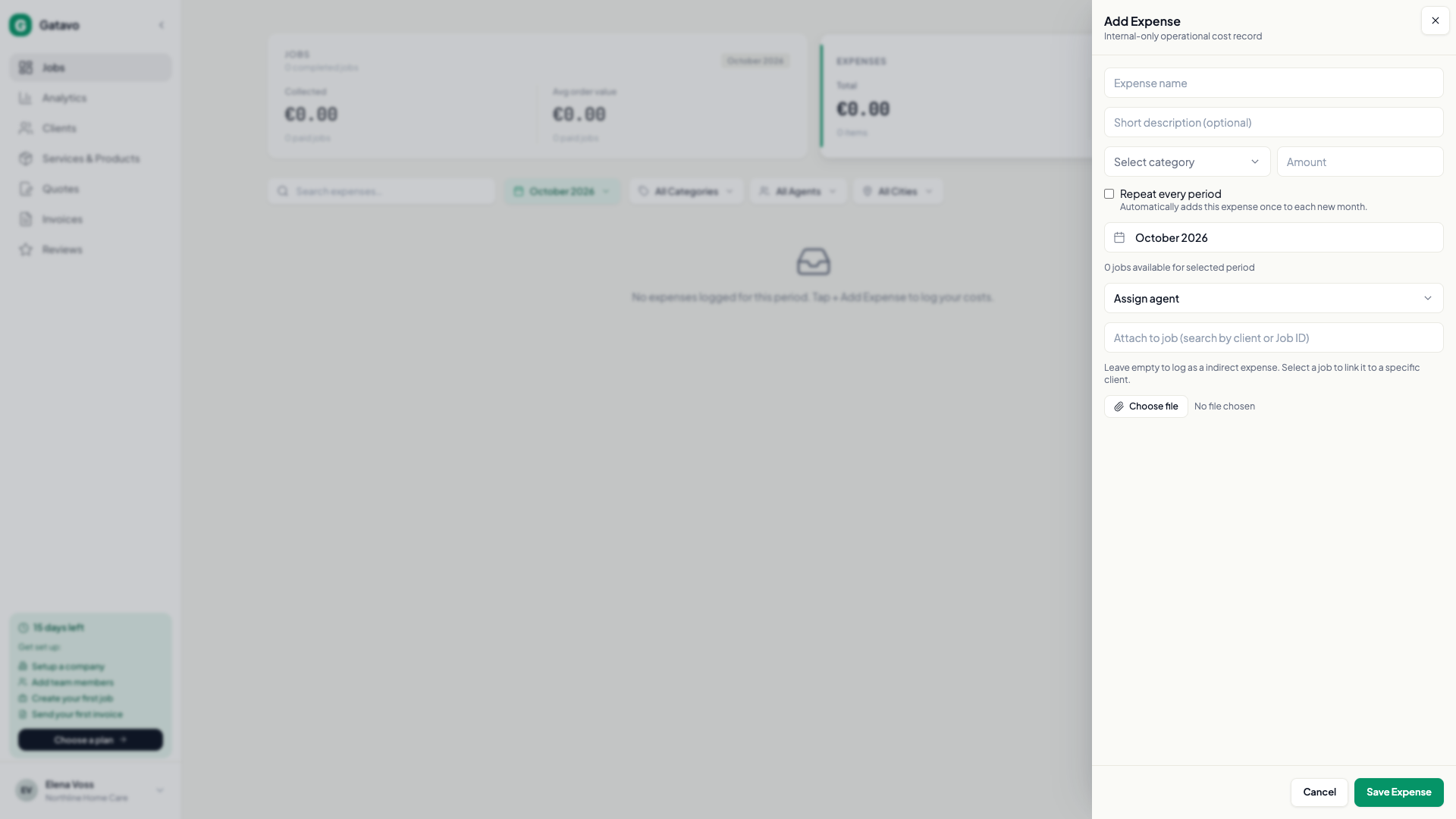
- On Jobs, open Expenses. Click Add Expense (see How do I log an expense?).
- Fill Expense name, Category, and Amount. Leave Attach to job empty. The tick is hidden when a job is attached.
- Tick Repeat every period. If the company calendar is weeks, the helper says Automatically adds this expense once to each new week. If it is months, it says Automatically adds this expense once to each new month. There is no separate weekly/monthly switch.
- Save.
The rhythm follows Week / Month in company settings (see How do I see how the business is doing?). You do not pick a frequency.
When you edit a repeating row, Gatavo asks Apply this change. Pick This expense only or This and future periods. Earlier periods are never rewritten.
Untick Repeat every period to stop later copies. Rows already written stay.
Agents and team leads do not see the tick.
Disable or Remove on that person stops future copies (see What stays in Gatavo when I disable someone?). Enable does not start them again.
You cannot archive an expense category that a live repeat still uses. The message is {name} is still used by a repeating expense. Change or stop that expense first.
Deleting one row does not stop the series.