How do I undo a payment or write something off?
Updated 8 Oct 2026
Undo puts collected cash back to unpaid. Write off drops what you will not collect. Write-off does not add to Collected.
Undo
You recorded cash by mistake.
- Open the completed job.
- Next to Collected · {date}, click Undo.
- The dialog is Undo payment? It says {amount} moves back to Unpaid.
- Confirm Undo.
If that period is already settled, Gatavo will not undo it.
Write off
You will not collect the rest. Outstanding goes down. Collected stays where it is.
- On the job, click Write off. The dialog is Write off this job?
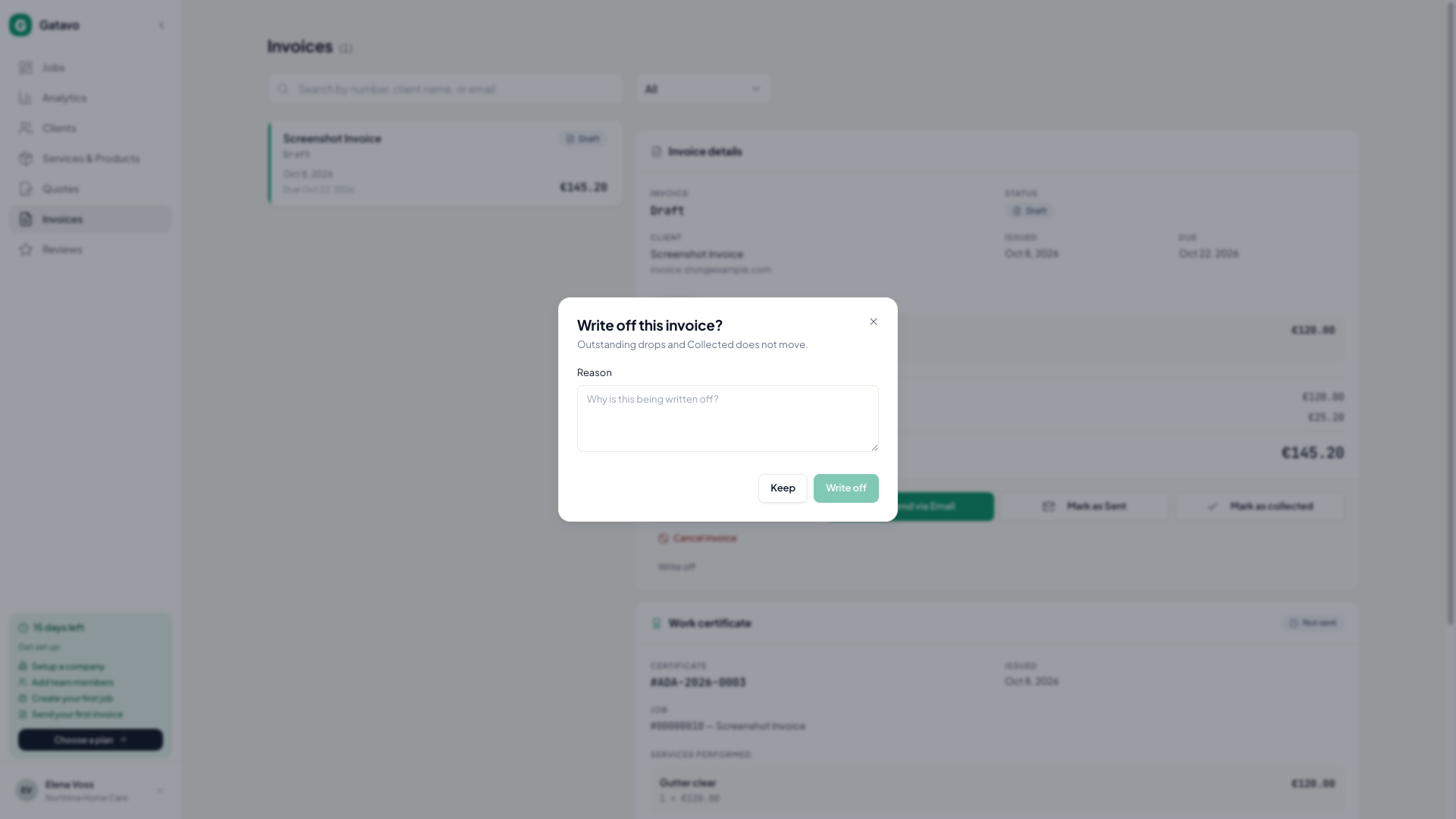
- Or open the unpaid invoice and click Write off. The dialog is Write off this invoice?
- Both say Outstanding drops and Collected does not move.
- Type a Reason. The placeholder is Why is this being written off?
- Click Write off. Keep closes the dialog without changing anything.
You cannot write off a job that is already Collected. Issue it or undo the cash first if the number is what you need.
The list status for a write-off is Written off.