How do I disable, remove, or restore someone?
Updated 8 Oct 2026
Open Settings → Team. Expand the person. Use Disable, Enable, Remove permanently, or Restore.
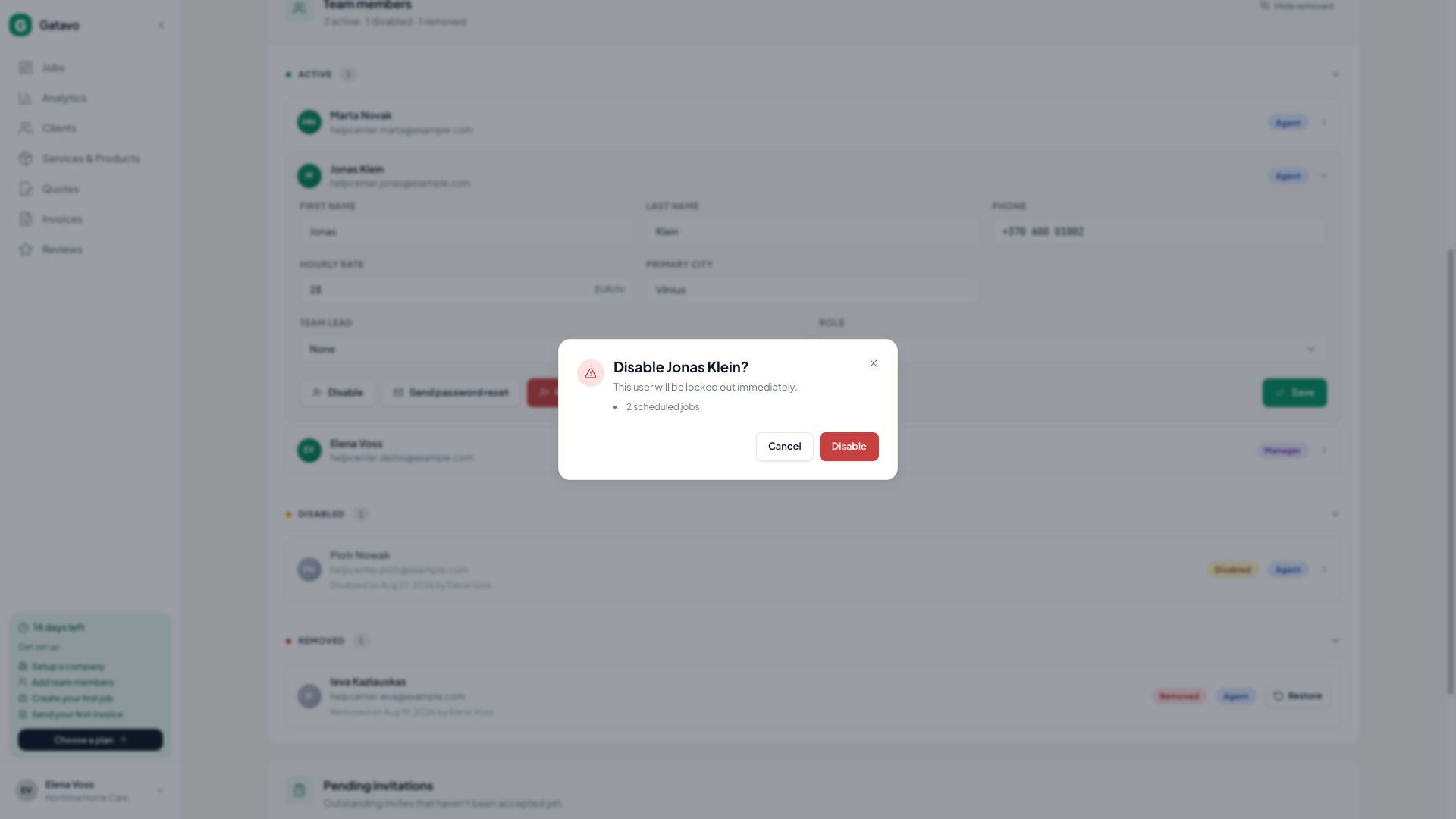
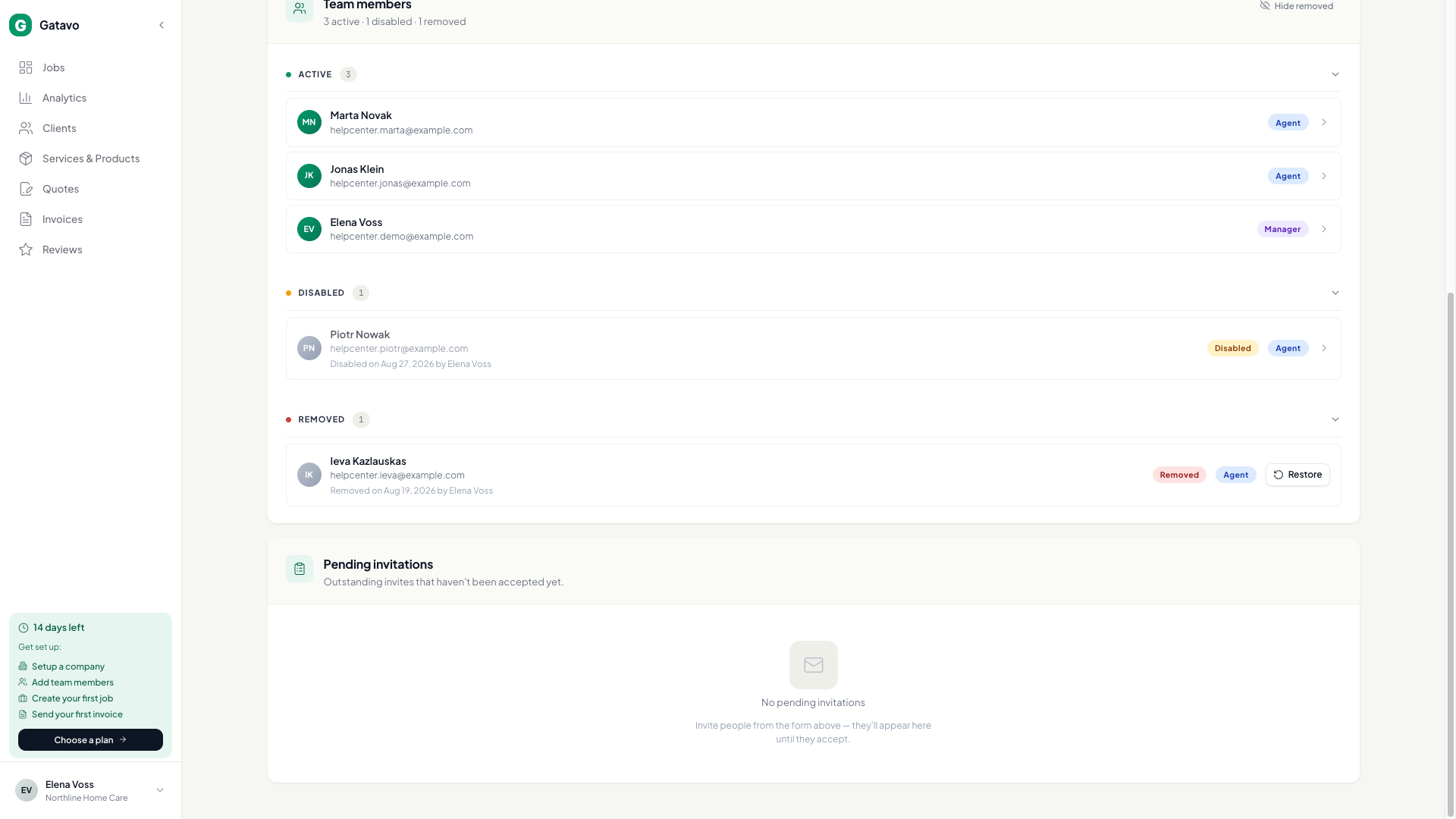
Disable
- Click Disable.
- Read the dialog. It can list scheduled jobs, repeating series, and (Income split) unsettled earnings.
- Click Disable. They cannot log in. They cannot be assigned new jobs. Old jobs stay on the list with a Disabled chip.
Enable — click Enable. They can log in again.
Remove
- Click Remove permanently.
- Confirm Remove. They leave the Disabled list unless you turn on Show removed.
- Historical jobs, invoices, certificates, settlements, and expenses keep their snapshot.
Restore — under Removed, click Restore. They come back as Disabled. Click Enable if they should log in.
You cannot disable or remove yourself. You cannot disable or remove the last active manager.
If you disable a team lead, their agents are no longer attached to that lead.