How do I send, approve, and convert a quote?
Updated 8 Oct 2026
Send the quote. When it is Approved, click Convert to Job. The client can Accept quote on the View quote link. You can still click Mark Approved if they agreed another way.
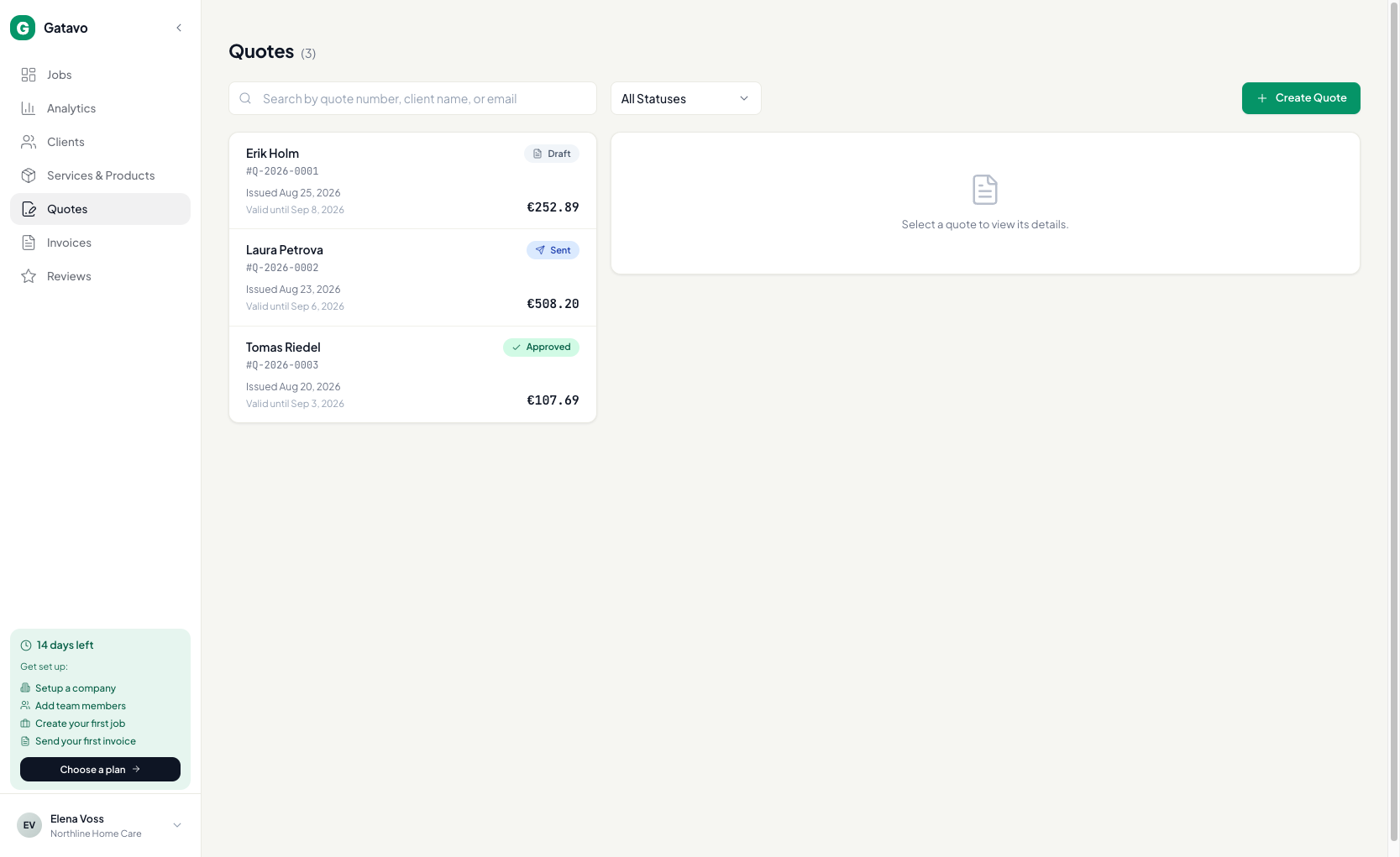
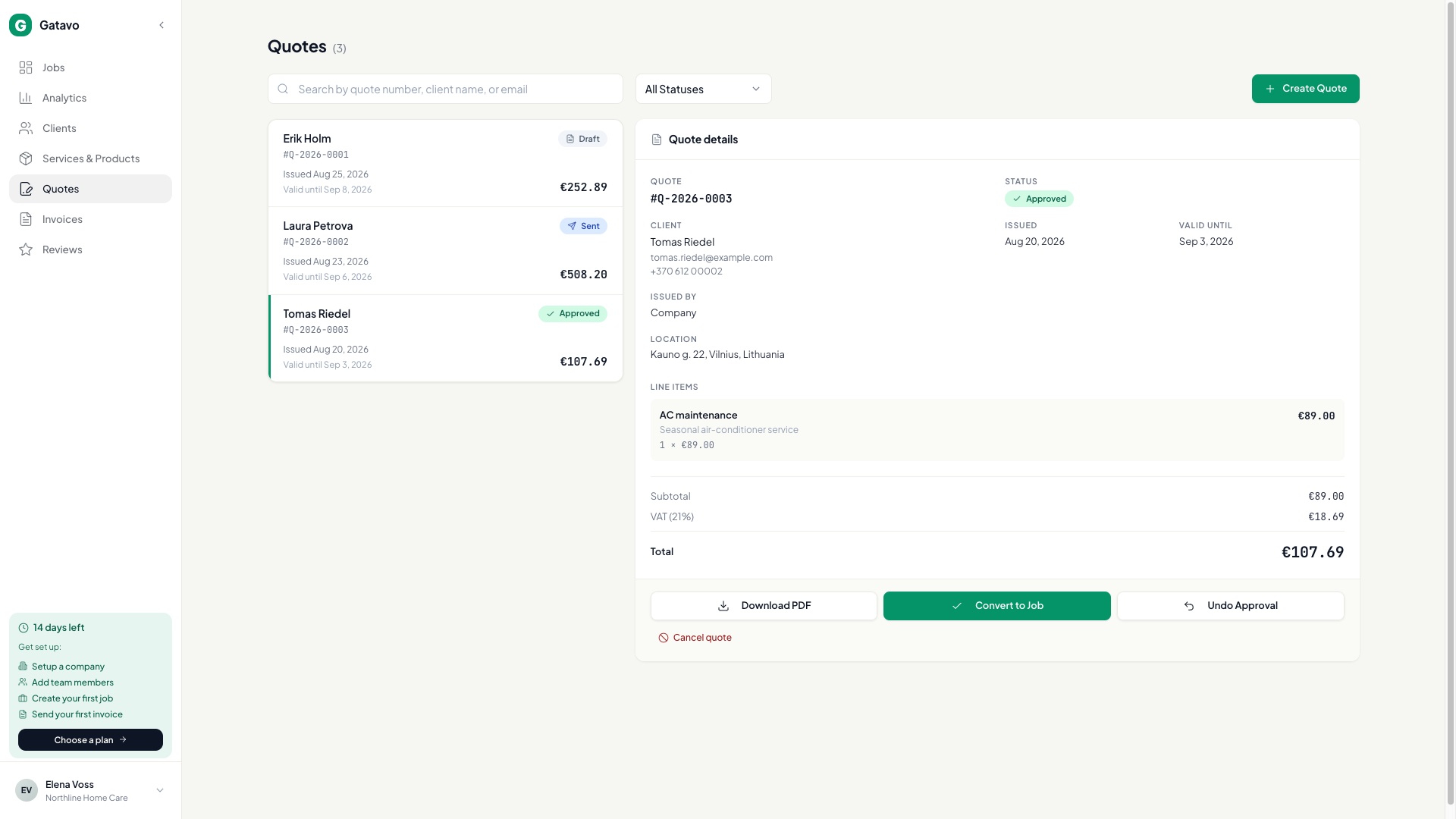
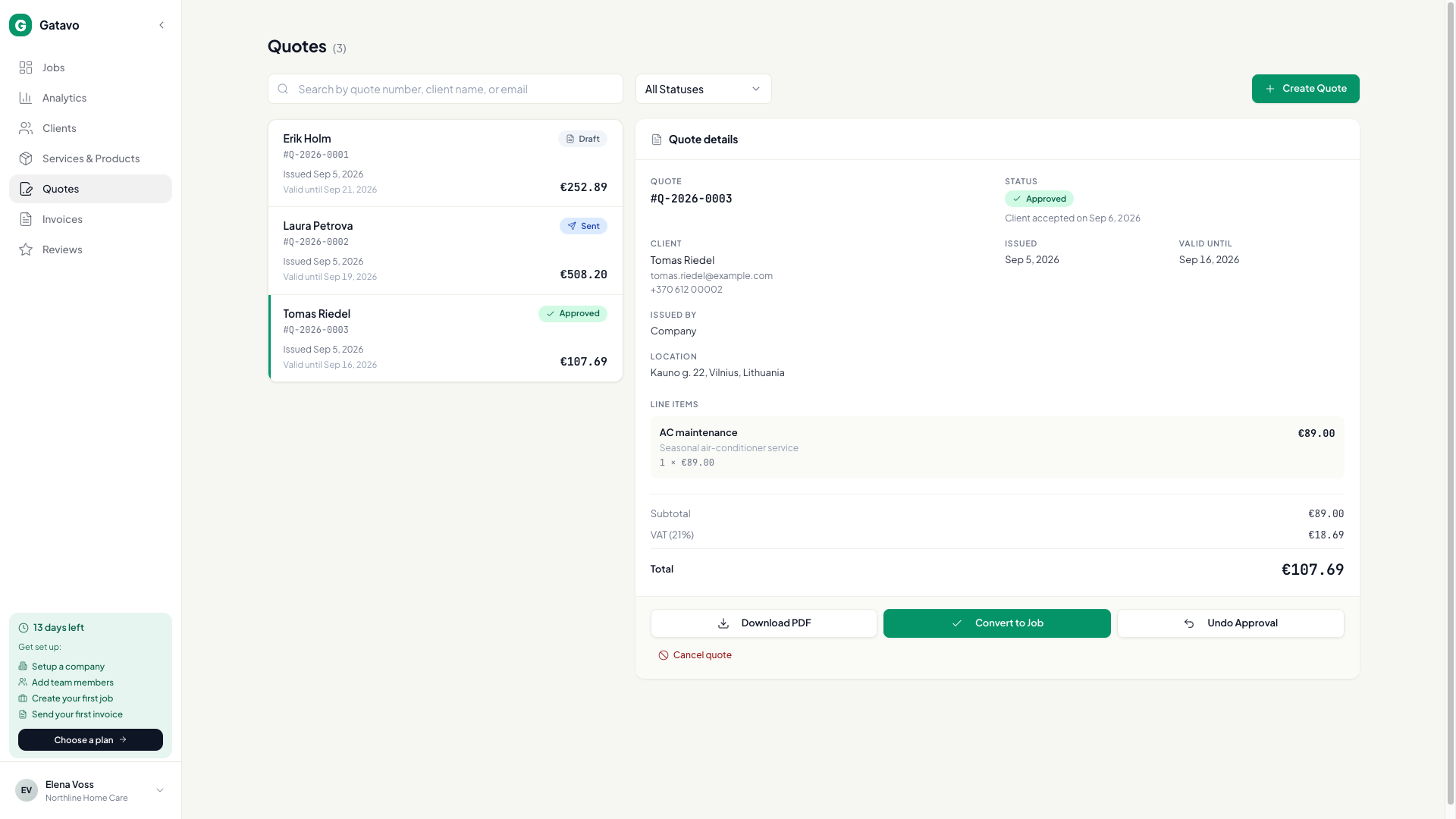
- Click Quotes. Open the quote.
- If it is a Draft, click Send to Client. Status becomes Sent.
- The client opens the link and clicks Accept quote or Decline (see How does a client accept or decline a quote?). Or, if they agreed by phone, click Mark Approved.
- When status is Approved, click Convert to Job. The add-job form opens with the client, address, and lines filled in.
- Set Visit Date and Assign Agent if you know them. Click Create Job Request.
Accepting does not make a job. You still convert.
If they Decline, use Duplicate as new draft to send a new quote. You cannot reopen a declined quote in place.
Undo Approval still works until you convert — including after a client accept.
Other actions on the quote:
- Download PDF
- Resend Email (already sent)
- Mark Rejected
- Cancel quote
A sent quote past Valid until becomes Expired. The client cannot accept after that.
Income split only: Issued by is set when you create the quote (see How do I create a quote?). Convert still makes a company job unless you change it there.