How do I put a request form on my website?
Updated 8 Oct 2026
Turn on the form in Settings → Integrations. Copy the Iframe snippet onto your site.
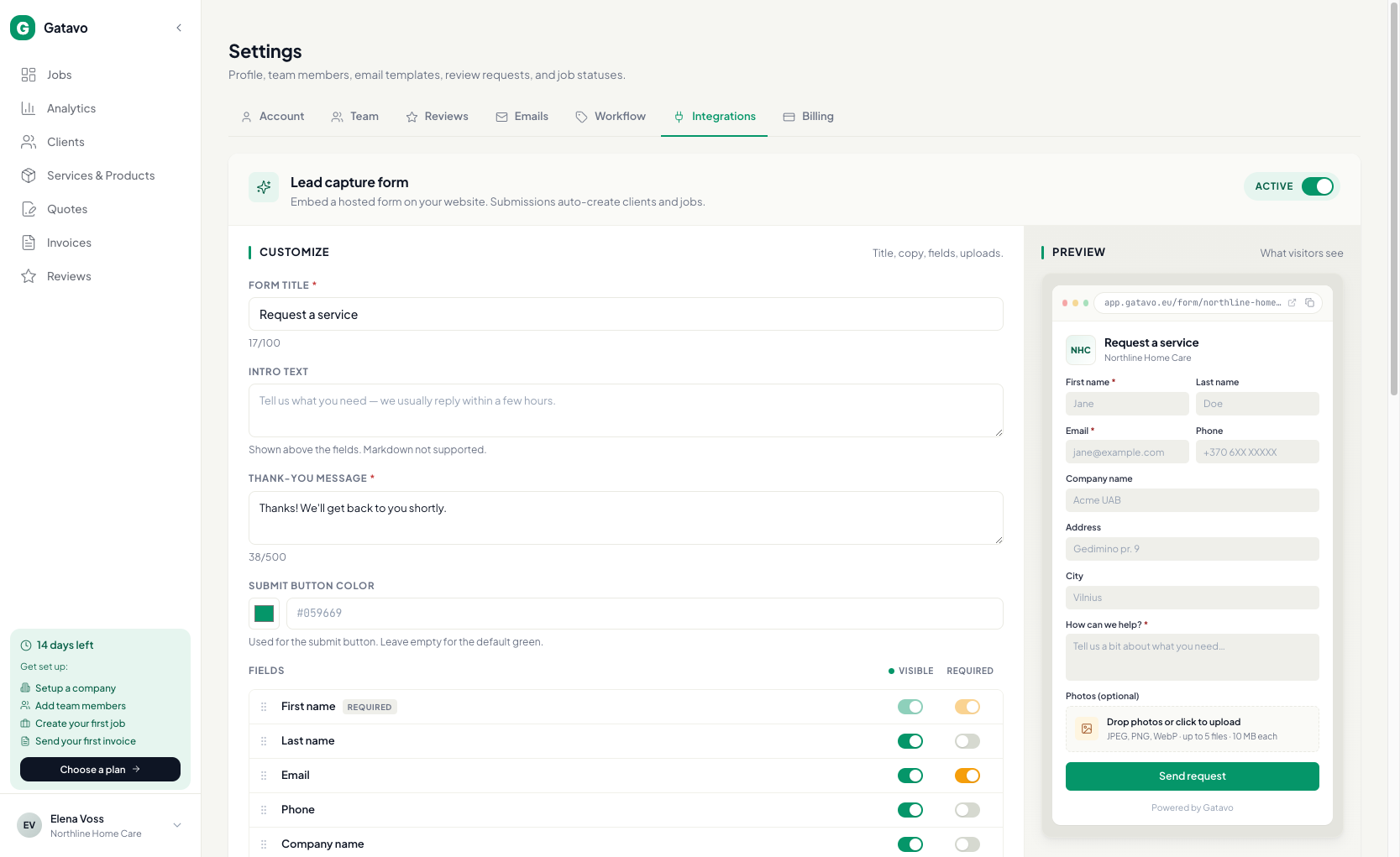
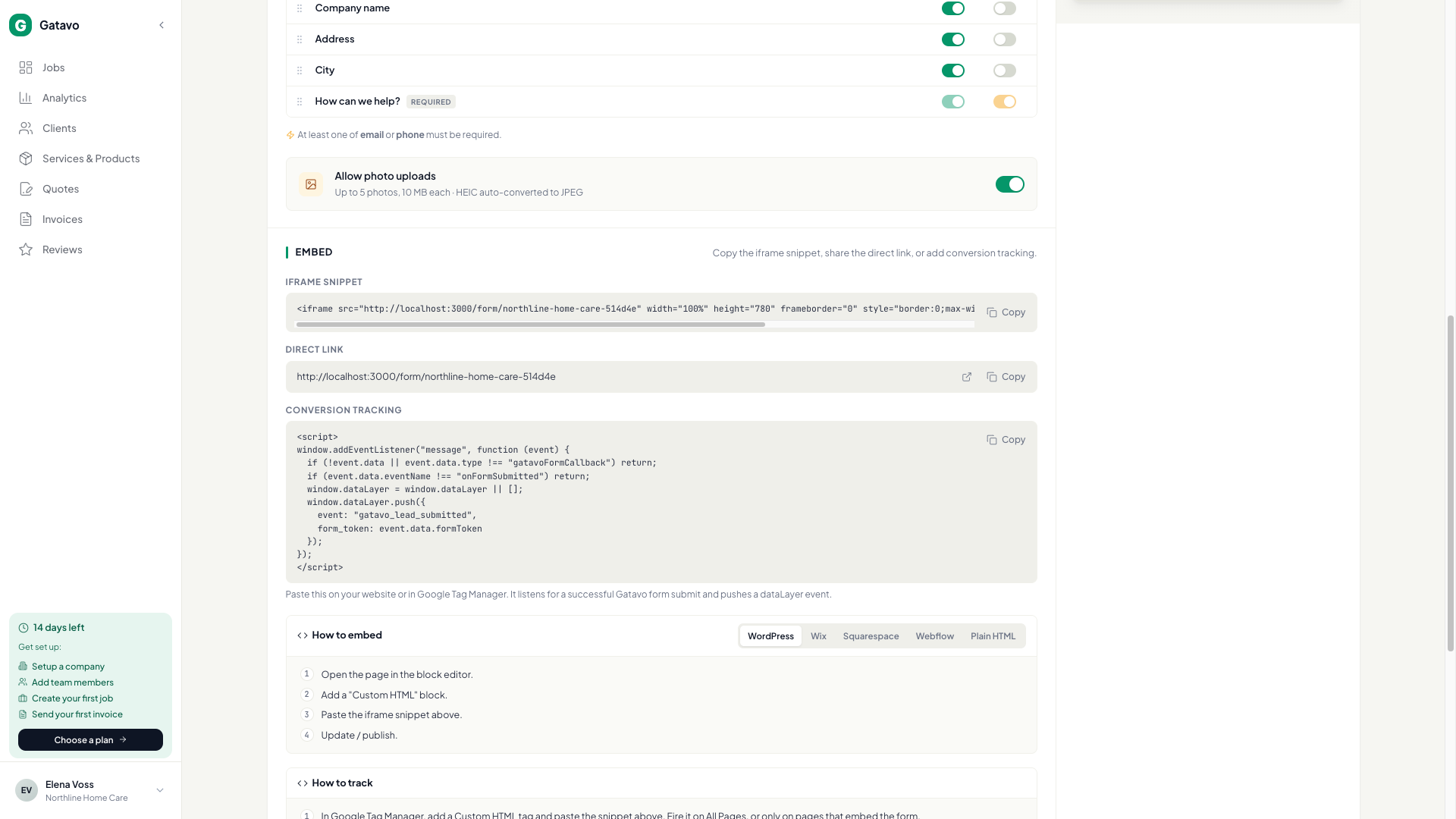
- Go to Settings → Integrations.
- Open Lead capture form. Make sure it is Active.
- Edit Form title, Intro text, Thank-you message. Optional: Submit button color.
- Tick Visible and Required for each field. Keep email or phone required.
- Optional: turn on Allow photo uploads.
- Click Save lead form.
- Copy Iframe snippet or Direct link.
- Use How to embed for WordPress, Wix, Squarespace, Webflow, or Plain HTML.
- Check Preview. The preview uses your Document language, not the language you see in the app.
- To count submits in Google Ads, GA4, or Meta: copy Conversion tracking. In Google Tag Manager, add a Custom HTML tag, paste the snippet, and fire it on All Pages (or only pages that embed the form). Create a Custom Event trigger named gatavo_lead_submitted. Attach that trigger to your conversion tags.
- The Direct link does not fire this event. Tracking works when the form is embedded on your site.
City on the public form suggests places in Countries you serve. Visitors can still type a name that is not in the list.